

If you use a digital microscope for PCB inspection, soldering work, coin collecting, or small electronics repair, you might wonder: Can it really connect and work properly with a Windows Surface device?
Yes—most digital microscopes work with Windows Surface devices because Windows Surface runs a full version of the Windows system (Windows 10 or Windows 11), so it is highly compatible with almost all digital microscopes on the market. In fact, Windows is the preferred operating system for most microscope software. However, since the Windows Surface is a thin and light tablet-laptop hybrid device, there are two important things you need to pay attention to before plugging in the device: ports and software.
Special Note on ARM64 Architecture Surface Devices: If you are using a Surface Pro X or a newer Surface Pro 11th generation equipped with a Snapdragon X Elite chip, it runs an ARM-architecture Windows system (ARM64). This is crucial. Many microscope drivers and software are designed for x86 (Intel/AMD) processors. ARM-based Surface cannot run x86 drivers, which may cause the device to fail to work properly. Therefore, before purchasing, please be sure to search “[Microscope Model Name] Windows 11 ARM64 support” to confirm the text explanation information of compatibility.
Setp 1:Check Ports
Most digital microscopes connect via a standard USB cable. Depending on the Windows Surface model you own, the way you operate will be different:
- Older Surface models (Surface Pro 3 to Pro 7, Surface Laptop): These usually have at least one standard USB-A port. If your microscope has a traditional rectangular USB plug, it can be inserted directly.
- Newer Surface models (Surface Pro 8, 9, 10, 11, Surface Pro X, Surface Laptop Studio): These models have completely abandoned the USB-A interface in favor of the slimmer USB-C / Thunderbolt interface.
If your Surface only has USB-C ports, and your microscope uses a USB-A port, you only need a cheap USB-A to USB-C adapter or a USB-C hub to connect it.
Setp 2:Software Installation
Using Windows built-in Camera app (fastest) – no special driver required. Most modern digital microscopes comply with the UVC (USB Video Class) standard. This means Windows will automatically recognize them, just like recognizing a standard webcam—no special driver required.
Installing the software provided by the manufacturer. Although the default Camera app is sufficient for basic observation needs, installing the software that comes with the microscope (or downloading it from the manufacturer’s website, such as Plugable, Tomlov, or AmScope) can truly bring out its full potential. It should be noted that:
- If you are using a very old or ultra-low-priced Surface device running Windows RT (such as the first-generation Surface RT or Surface 2 from ten years ago), or a model running Windows S mode, you may encounter problems when installing third-party manufacturer software.
- If your device is in S mode, you can easily switch out of S mode for free through the Microsoft Store settings to allow the installation of standard Windows desktop applications.
Setp 3:Two mainstream connection methods for the Surface with digital microscopes
USB-wired digital microscope (UVC plug and play)
The vast majority of wired digital microscopes on the market support the UVC (USB Video Class) protocol. Simply put, Surface will recognize it as an “external camera”. Zero latency, no power consumption.
- Connect the microscope to the Surface.
- Open the built-in Camera app in Windows.
- Click the “Flip Camera” or cycle button (usually in the upper right corner) to switch from the Surface’s built-in front/rear camera to the microscope screen.
Wi-Fi wireless digital microscope (most convenient to use)
The microscope comes with a built-in Wi-Fi chip (and a built-in battery). It will emit a dedicated Wi-Fi signal, and your Surface connects to it just like connecting to a home router to receive the image. Usually, it can connect not only to Surface, but also to a phone or iPad at the same time. Perfect multi-terminal compatibility: Since it does not rely on complex Windows underlying drivers, even if you use it on the ARM64 architecture (Snapdragon X Elite) Surface mentioned above, as long as there is a corresponding official application, you can perfectly avoid the big pit of driver incompatibility. For detailed steps, please refer to the manufacturer’s instruction manual.
Last: Common compatibility problems of Surface devices and solutions
| Common problem phenomenon | Root cause analysis | Quick solution |
| The screen is completely black after plugging in the microscope | It may be that permissions are not enabled, or due to the insufficient USB-C power supply of the new Surface. | 1. Check Windows privacy settings to ensure applications are allowed to access the “Camera”; 2. Try to use a USB docking station with independent power supply. |
| The screen lags and the frame rate is extremely low | The microscope was mistakenly inserted into an old USB 2.0 interface, or the Wi-Fi signal is interfered with. | 1. Try to connect to the high-speed USB 3.0 or Thunderbolt interface of the Surface; 2. Lower the resolution of the microscope software (such as from 4K to 1080P) to improve smoothness. |
| Prompt “Unrecognized device” / “Driver error” | You may be using an ARM64 architecture Surface, and the microscope driver is incompatible. | Switch to the built-in Windows “Camera” app to try to output the image. If it still doesn’t work, it is recommended to replace it with a microscope that complies with the UVC driver-free protocol. |
Recommended microscope types most suitable for Surface devices
If you are a heavy PCB repair or precision soldering expert:
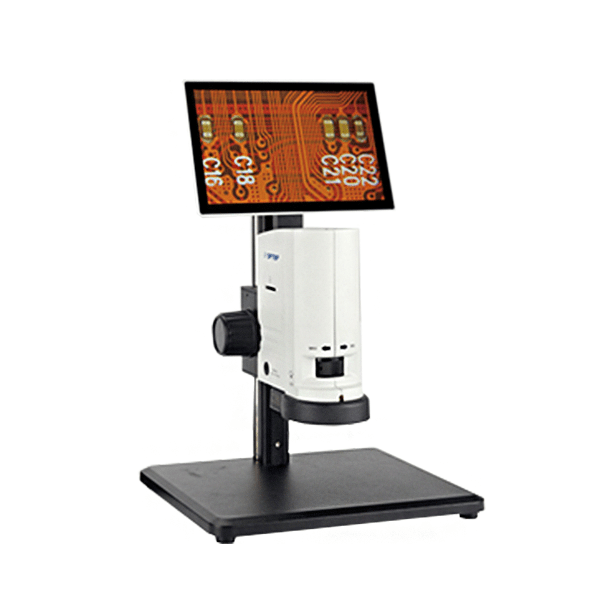
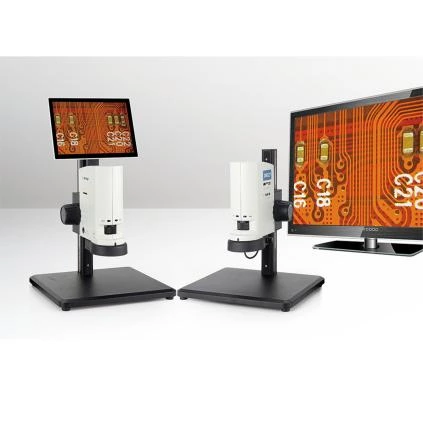
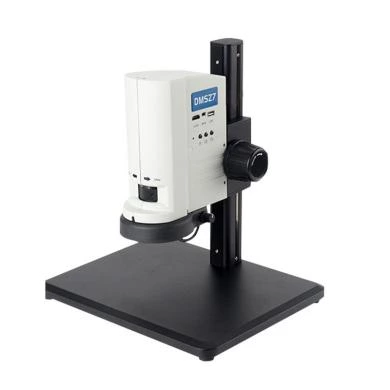
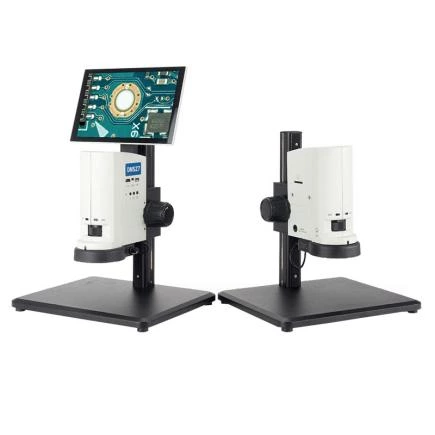
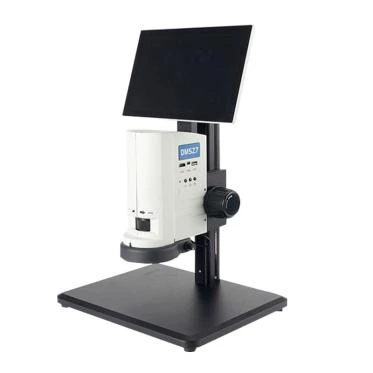
- Highly recommended: [Electronic microscope with built-in independent integrated screen + supporting standard HDMI/USB output]. When working, look directly at the microscope’s own screen to ensure zero latency; when you need to take large pictures and save them to the disk, then connect to the Surface through the wired UVC mode.
If you are a coin collector, doing daily quality inspection, or using the latest ARM64 (Snapdragon chip) Surface:
- Highly recommended: [Wi-Fi wireless digital microscope]. It can not only keep your Surface desktop elegant and tidy, but also perfectly avoid any risk of driver incompatibility caused by chip architecture, making it the most convenient combination to use.